
QuickBooks Online Made Simple
Practical, easy-to-follow video tutorials to help you spend less time figuring out your bookkeeping and more time running your business.
Step 1: Open Bank Transactions
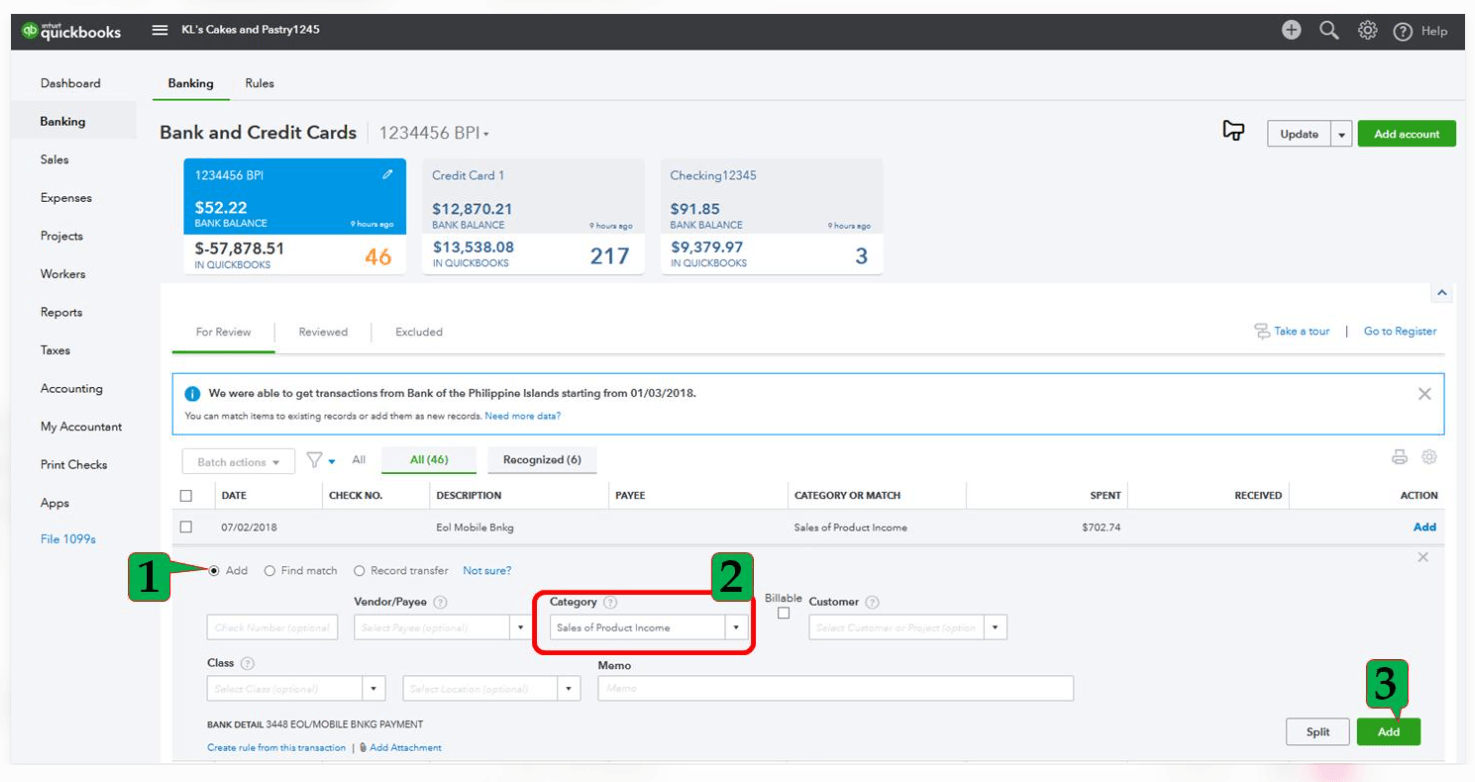
In QuickBooks Online, navigate to Transactions → Bank transactions. Select the bank or credit card account you want to review.
Step 2: Review Your Downloaded Transactions
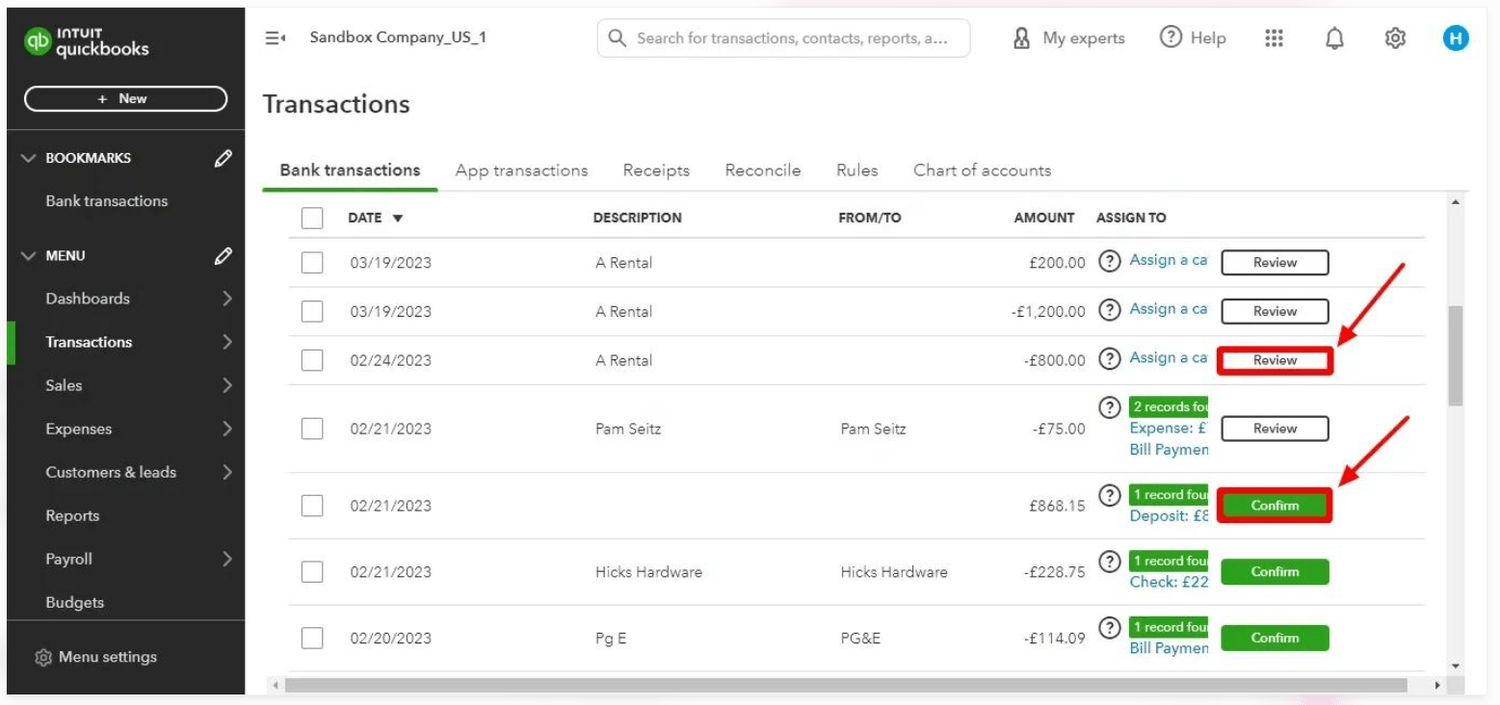
Under the For review or Pending tab, locate a transaction. Check the date, description, and amount before making any changes.
Step 3: Select the Correct Category
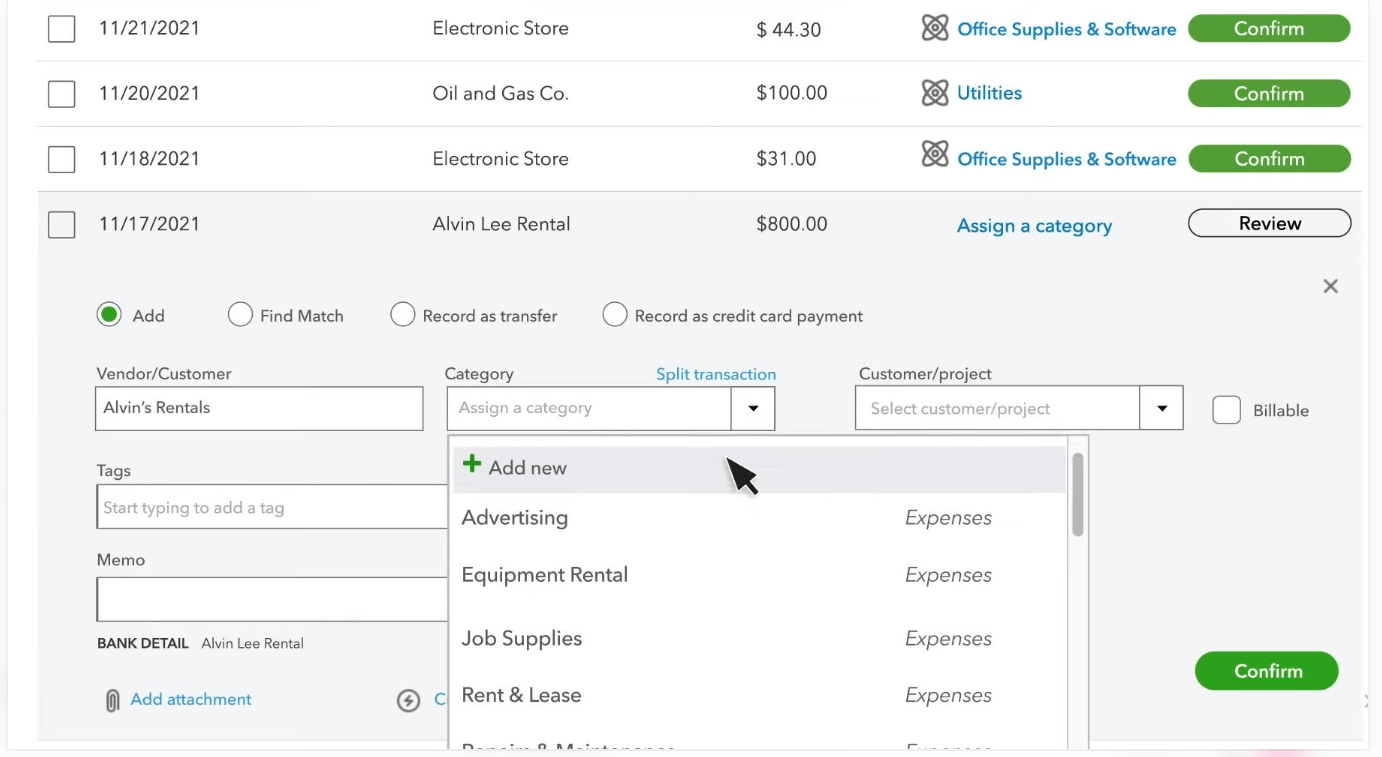
Open the transaction and choose the appropriate account from your Chart of Accounts. Make sure the category reflects what the transaction was actually for.
Step 4: Check for Existing Transactions
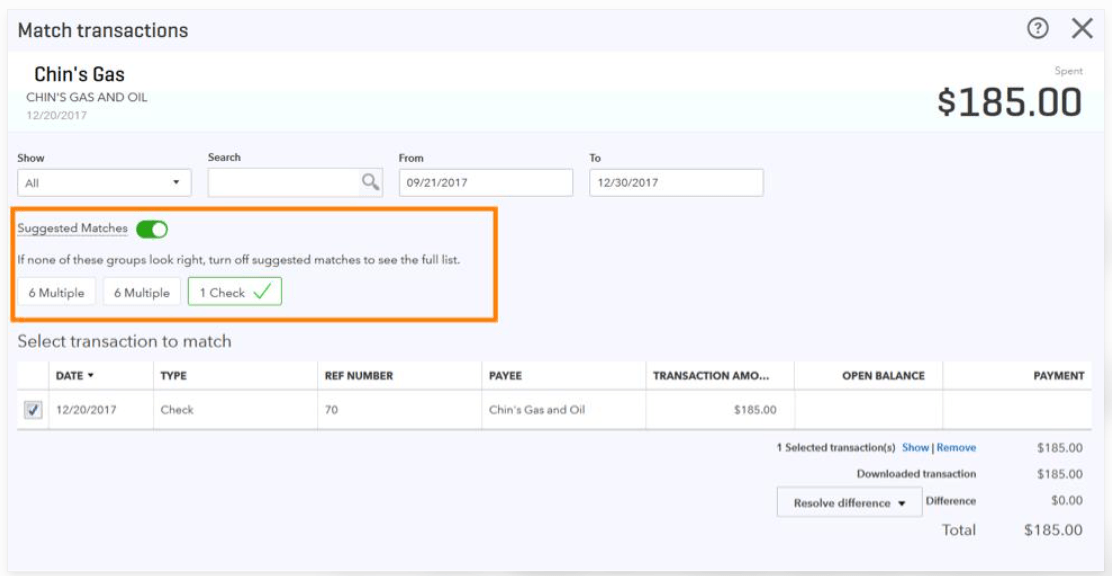
Before adding a transaction, check whether QuickBooks has identified a matching transaction already entered in your books. Matching helps prevent duplicate income or expenses.
Step 5: Confirm and Review
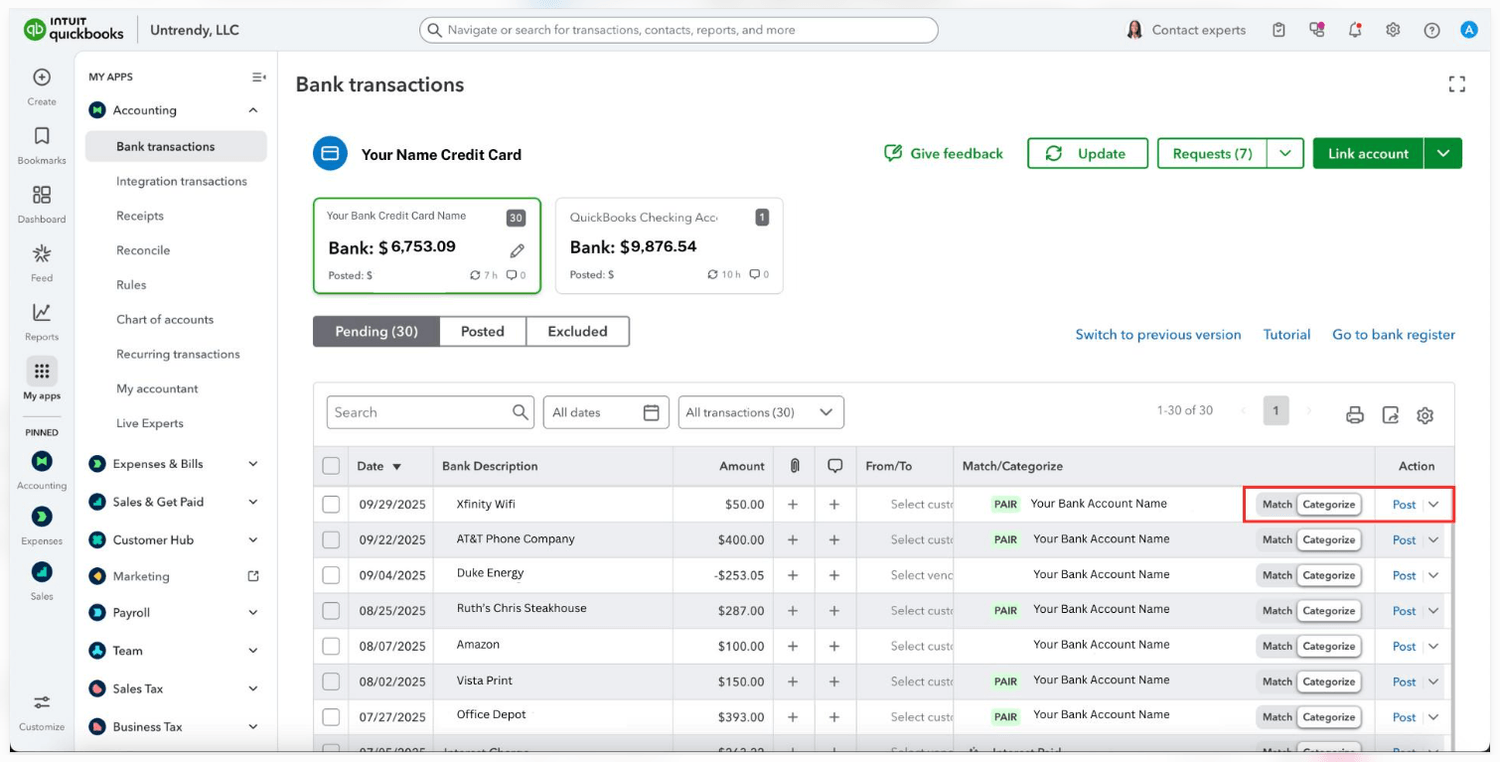
Once you've verified the details, select Add, Post, or Match, as appropriate for the transaction and your QuickBooks interface. Review the resulting entry for accuracy.
Beyond the Numbers | Clarity Tip
Just because QuickBooks suggests a category doesn't mean it's correct. Take a moment to review each transaction before accepting it. A few seconds of attention now can prevent hours of cleanup later.